
- Turn off ACR and keep the TV if you want its built-in apps and are comfortable using separate viewing-data and advertising opt-outs.
- Take the TV offline (“dumb screen mode”) if you want to block the TV’s network uploads and can move streaming to an external HDMI device.
- Use a dedicated OLED monitor or PC dock if your screen mostly serves a computer and you want a display without a Smart TV operating system.
Samsung TV tracking is back in the spotlight after security researcher log4j said he rooted his own 2025 Samsung Tizen TV and found data-collection modules. Start with the settings below before buying a replacement. For a PC-centered setup, compare 4K OLED and Mini-LED monitors, the Alienware AW2725DF and ASUS PG27UCDM, or 1440p gaming monitors. A laptop may benefit from a USB-C docking station; our VPN and gaming guide addresses the separate question of network routing. A VPN does not disable ACR on the TV.
We may earn a commission when you buy through these links.
What did the Samsung Tizen root report find?
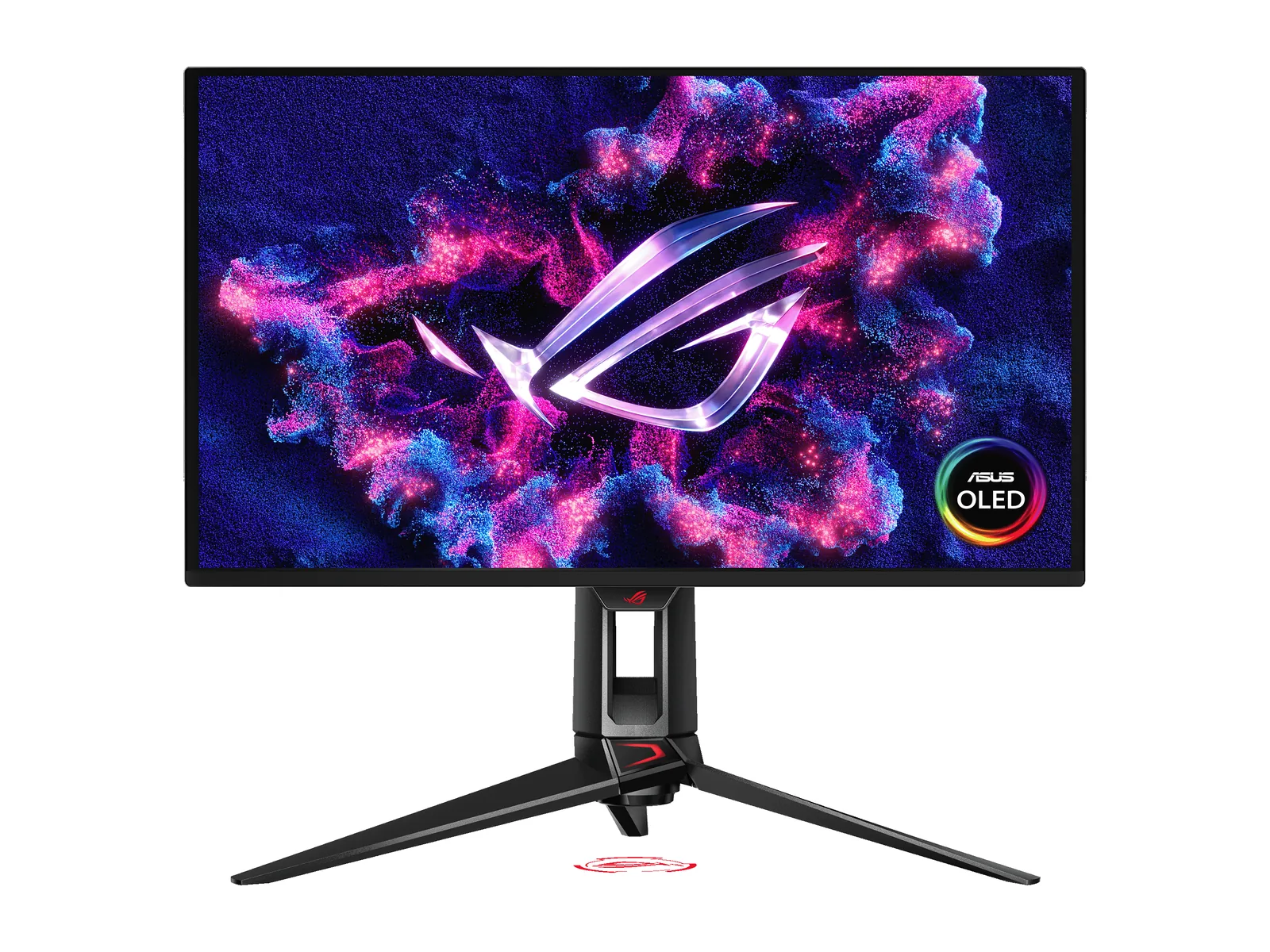
The ASUS monitor above is a PC-display alternative, not the Samsung TV involved in the report. Keeping your existing TV and changing its settings remains the first option.
According to Tom’s Hardware and Mezha, log4j reported that his rooted TV ran Automatic Content Recognition, or ACR, modules that captured periodic screenshots, audio metadata and advertising IDs for ad targeting. These are one researcher’s allegations, without an independent third-party audit. They do not establish that every Samsung TV behaves identically, or that every captured item was uploaded.
ACR identifies what is playing on the screen, while microphone access is about sound in the room. Finding a software module does not, by itself, establish continuous recording of conversations.
Log4j also said OpenAI banned his account after he used its model to help reverse-engineer and analyze the TV’s binaries. AI Lately’s October 24 account attributes the ban claim to him. The timing does not independently establish why the account was banned. As of the October 25 source check, the cited reports carried no official Samsung or OpenAI comment on this specific case.
Does the report prove an always-on microphone?
No. The microphone evidence remains inconclusive. In a separate October 23 test cited by Tom’s Hardware and Mezha, Hugging Face engineer ngxson examined a rooted TV with data-collection settings disabled. He observed the microphone open for about five seconds at startup, then stop.
That observation does not establish an always-on microphone, what the brief access was used for, or whether audio was transmitted. It also does not settle log4j’s broader claims. Treat it as a limited observation on a separate setup, rather than proof that your own TV is continuously listening.
How to turn off ACR on a Samsung TV: four steps
1. Turn off Viewing Information Services and personalized ads
Open Settings > All Settings > Terms & Privacy > Viewing Information Services and uncheck the consent option. Then disable Interest-Based Advertisements in the privacy options. Viewing Information Services is the setting to look for when you want to turn off ACR on a Samsung TV.
Menu locations and wording can vary with model, region and firmware; some sets put these options under Support or Privacy Choices. Read the consent screen for your exact TV. The viewing-data opt-out and the advertising opt-out are separate controls. Disabling personalized ads does not remove all advertising or stop every app’s telemetry.
2. Turn off the physical mic switch and voice permissions
Find the physical mic switch, often along the TV’s lower edge, and set it to off. Consult your model’s manual for the location. If your remote has its own microphone or a mic control, check that separately, and revoke voice-assistant microphone permissions or disable voice wake-up in the TV settings.
Samsung’s model-specific support instructions say switching the TV microphone off disables features that depend on it. A TV switch does not establish that a separate remote microphone is disabled. This step addresses microphone use; it does not turn off picture-based ACR. Expect voice control and sound features that need the mic to stop working.
3. Update firmware, then disconnect both network connections
Install the current firmware first. Then disconnect the TV from Wi-Fi and Ethernet: remove the saved wireless connection or disable Wi-Fi, and unplug its network cable. An Ethernet cable left attached defeats an offline setup.
This is “dumb screen mode”: the TV displays your HDMI source while its own network connection stays offline. It blocks network uploads while the TV stays offline, though it does not prove that local processing stops or that stored data could never be sent after reconnecting. Built-in streaming apps and online updates will be unavailable until you reconnect.
4. Supply the picture over HDMI, or use a dedicated monitor
Connect a PC, laptop or external player over HDMI. A compatible Thunderbolt or USB-C dock can connect a laptop to the display, but it is optional; a direct cable may be enough. Check the laptop’s video-output support, dock outputs, adapters and required resolution and refresh rate before buying.
A dedicated OLED monitor without a Smart TV OS removes the TV software layer from that setup. It does not make the connected computer, streaming player or apps private. Those devices retain their own accounts, advertising settings and telemetry. The same limitation applies to an external player attached to an offline TV.
Which privacy measure fits your setup?
These controls address different paths. Combine them when you need both microphone restrictions and network isolation.
| Method | What It Stops | What Still Works | Best For |
|---|---|---|---|
| Menu Opt-Out (Viewing Information Services Off) | Opts out of the TV’s viewing-information service; disable interest-based ads separately | Built-in apps and HDMI; other permitted telemetry and general ads may remain | Keeping Smart TV conveniences with reduced viewing-data collection |
| Physical Mic Switch Off | The TV microphone and features that depend on it, on supported models | HDMI, picture display and apps; ACR and a separate remote mic need separate controls | Owners who do not need the TV’s voice features |
| Offline “Dumb Screen” Mode + External HDMI Source | Network uploads from the TV while both Wi-Fi and Ethernet stay disconnected | HDMI display; the external source can have its own internet connection and tracking | Keeping an existing screen while isolating its Smart TV software from the network |
| Dedicated OLED Monitor (No Smart TV OS) | Removes the Smart TV OS and its ACR layer from the display setup | PC or external-source video; source-device telemetry remains possible | Desk gaming and laptop work where a monitor fits the screen-size need |
Keep the screen, or build a PC display setup?
Keep the TV if its size and picture suit you. Start with the menu opt-outs and microphone controls. Use an external source with the TV offline if you want stronger separation from its network services. The report alone is not a reason to replace a working screen.
For a desk, the ASUS ROG Swift OLED PG27UCDM is the dedicated OLED option shown here. Compare it with the Alienware in our OLED monitor comparison before choosing a screen size and resolution. It serves a different use from a living-room TV.
The Anker 575 USB-C Docking Station A8392 is an option when a laptop needs display and peripheral connections. Its host must support DisplayPort Alt Mode for video. Check the exact display configuration in our USB-C docking station guide; a dock does not disable tracking on either connected device.
The CalDigit TS4 Thunderbolt 4 Dock is another option for a compatible Thunderbolt or USB4 laptop. Check its host matrix and display-output path, including any HDMI adapter you need. Do not assume a dock preserves the monitor’s maximum gaming refresh rate.
Choose a dock for ports you need, and a monitor for the viewing distance and workload it fits. For more display options, return to our 4K OLED versus Mini-LED guide.