How we chose
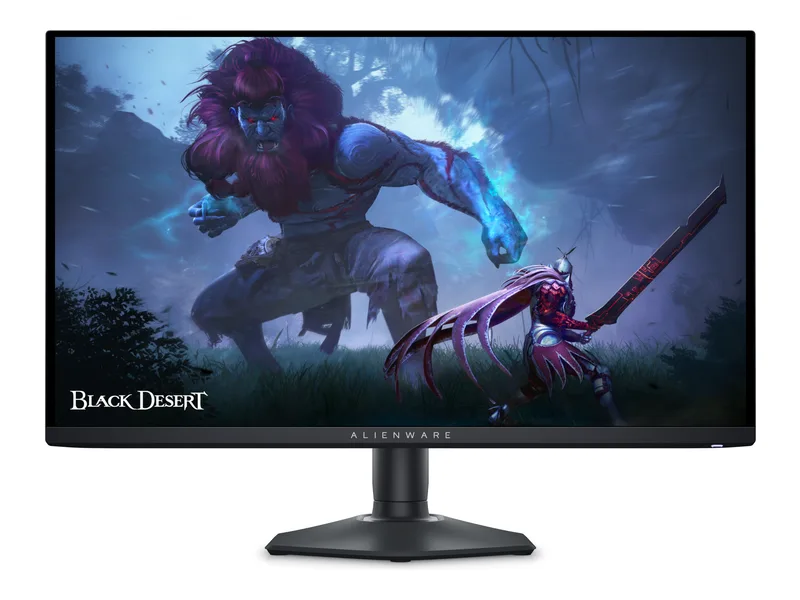
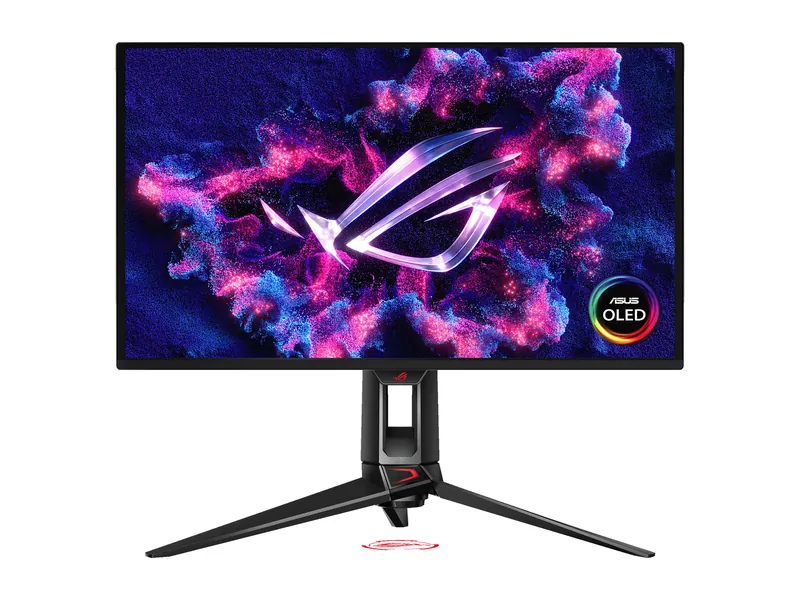
The AW2725DF fits a desktop built around competitive play. The PG27UCDM fits a desk where small text and a work laptop matter as much as games. Both use QD-OLED; the choice turns on resolution, refresh rate, connections and room lighting. This is a research-based comparison, not an instrumented review or an FPS benchmark.
Choose Alienware when you mostly play shooters at 1440p and already have a PC that delivers consistently high frame rates. Choose ASUS when you spend hours reading code or spreadsheets and want one monitor for a laptop and gaming desktop. If direct daylight washes across the screen, address the room first.
Text clarity: roughly 110 PPI versus 166 PPI
At this size, 4K makes a substantial difference to small text. Using the manufacturers’ resolutions and viewable diagonals, pixel density is about 110 pixels per inch for the 26.7-inch Alienware and 166 PPI for the 26.5-inch ASUS. These are calculations from specifications, not measurements of either screen: divide the diagonal pixel count by the screen diagonal in inches.
QD-OLED’s nonstandard, triangular subpixel arrangement can produce colored edges around fine text because desktop font rendering commonly assumes an RGB stripe. Higher density makes individual pixels and their colored edges smaller at the same viewing distance. That gives the PG27UCDM the stronger case for code, spreadsheets and browser work; ASUS also identifies its panel as fourth-generation QD-OLED.
We would not promise that 166 PPI eliminates fringing for every reader. Font, scaling, operating system, eyesight and viewing distance all affect what you see. Try your normal applications at a comfortable scaling setting if text sensitivity is the deciding factor. A 4K screen can use scaling to keep letters readable while drawing them with more pixels; it need not mean using tiny text at 100% scale.
The Alienware remains a reasonable gaming-first choice, but a long working day spent on small spreadsheet labels is a different priority. Our 1440p work-and-gaming setup guide covers that tradeoff. Neither higher density nor OLED care features removes the burn-in risk of static toolbars and spreadsheets; use the manufacturer’s care functions and allow the prescribed panel maintenance.
Competitive motion: 360Hz versus the GPU load of 4K
The refresh ceilings imply a new refresh every 2.78 ms at 360Hz and 4.17 ms at 240Hz, calculated as 1,000 divided by refresh rate. Those intervals are not measured input lag. The two 0.03ms GtG specifications are manufacturer pixel-transition claims, not full system latency either.
Alienware offers more refresh headroom for competitive shooters. Its 1440p image also contains fewer pixels for the GPU to render: 3,686,400 versus 8,294,400 at 4K, or 2.25 times as many pixels per frame for the ASUS. Actual FPS does not scale by a fixed 2.25 factor; game engines, CPU limits, graphics settings and upscaling change the result.
For an RTX 5070 or RX 9070 XT system, first check game-specific benchmarks at your intended settings. We have not measured either GPU with these monitors and do not guarantee 360 fps. At very high frame rates the CPU and frame-time consistency can matter as much as the GPU. See our graphics-card buying guide and 1440p monitor alternatives before committing to a refresh target.
On the ASUS, demanding games may require lower settings or supported upscaling to approach the panel’s refresh ceiling. DLSS 4 and FSR 4 are options only where the GPU, game and software support the relevant feature. Upscaled output is not native-resolution rendering, and generated frames should not be treated as the same latency result as a higher base frame rate. A 16GB-or-larger GPU can be worth evaluating for a demanding 4K build, but VRAM capacity alone neither guarantees 240 fps nor sets a universal minimum for using this monitor.
DisplayPort bandwidth does not create more rendered frames
Use DisplayPort on the AW2725DF for its 1440p 360Hz mode. Dell specifies a 1440p 144Hz ceiling over HDMI, despite the HDMI 2.1 label. That limit matters if your computer has only HDMI output.
The PG27UCDM has DisplayPort 2.1a UHBR20, with an 80Gbps link rate. ASUS advertises uncompressed 4K 240Hz over that connection. To use the full link, the GPU output, monitor input and cable must all support the required mode; VESA specifies DP80-certified cables for UHBR20. A DisplayPort version label alone does not confirm the link rate.
This bandwidth can avoid Display Stream Compression on the appropriate connection. It does not reduce the work of rendering 4K frames. Check the exact output specifications of any Blackwell card you are considering rather than assuming its generation guarantees every mode. Other supported connections may use DSC; confirm resolution, refresh rate, color depth and HDR together in the monitor manual and GPU documentation.
Two-computer desk: USB-C, charging and KVM
The Alienware provides two DisplayPort 1.4 inputs, one HDMI input and a USB hub. Its USB-C port is downstream, not a laptop video input with 90W Power Delivery. Plan separate display, USB upstream and laptop-power connections if you use it at a shared desk.
ASUS provides one DisplayPort input, two HDMI 2.1 inputs, USB-C with DisplayPort Alt Mode and up to 90W charging, plus a KVM. A compatible MacBook can use one USB-C cable for video, USB data and charging, while the desktop uses its own display and USB upstream connections. Configure the KVM’s upstream assignments so the keyboard and mouse follow the intended computer.
Check your exact MacBook’s external-display limits, cable capability and power demand. USB-C’s presence does not guarantee 4K 240Hz from every Mac, and 90W may not cover every laptop’s full-load power requirement. The ASUS is the more convenient connection plan here, subject to those checks.
Ambient light: control reflections before choosing OLED
QD-OLED can show raised, purple-gray blacks when room light reaches the panel. AOC’s explanation links this behavior to interaction between ambient light and the panel structure, which generally lacks the conventional polarizer used in some other display designs. Self-emissive pixels can switch off, but they cannot switch off light reflected by the room.
Place the screen away from direct window light, use blinds and move lamps out of its reflection path. That is a useful first step for either pick. A bright window reflected in a dark game can matter more than the difference between their refresh ceilings.
If controlling the room is impractical, consider the ASUS ROG Strix OLED XG27AQWMG: a 1440p 280Hz Tandem WOLED with ASUS’s TrueBlack Glossy finish. It is an editorial alternative, outside this two-monitor comparison. Its different panel technology makes it worth evaluating when QD-OLED’s ambient tint is your concern; its glossy surface can still reflect a lamp or window. We have not measured these three models side by side in a bright room.
For persistent daylight, compare 4K OLED and Mini LED options as well. Do not assume a coating name alone solves glare.
Sources
Official sources accessed October 24, 2026. Specifications are manufacturer claims unless a calculation is identified above. The linked ASUS manual supports KVM configuration; this comparison does not certify a particular MacBook mode.