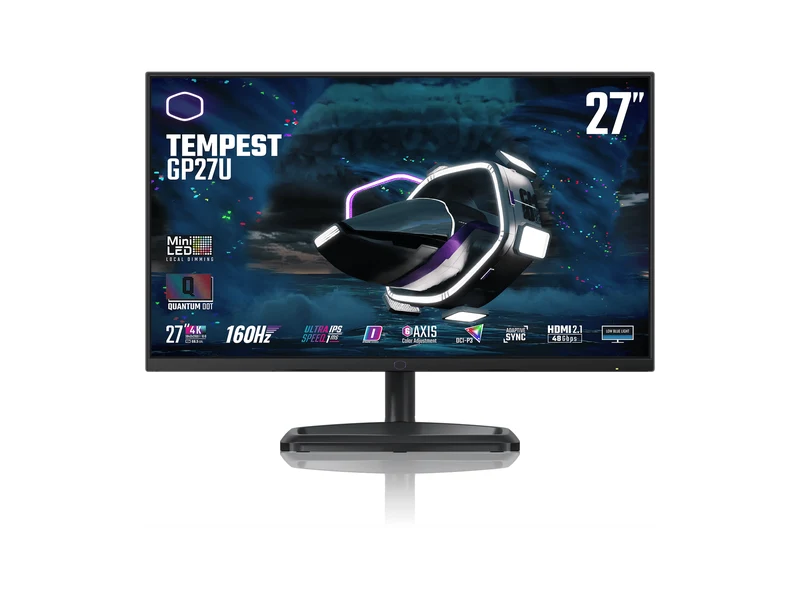
Get the Tempest GP27U if…
You want 27-inch 4K Mini-LED, manufacturer-listed 160Hz and USB-C 90W power delivery.
Skip it if You expect local dimming to behave exactly like OLED, or have not checked the ports and modes you will use.
Choose ASUS PG27UCDM for 4K OLED gaming at up to its rated 240Hz if you accept burn-in risk. Consider Cooler Master GP27U for 4K Mini-LED when static desktop work makes OLED care a poor fit. Check your games' 4K performance before choosing either refresh ceiling.
We may earn a commission when you buy through our links. As an Amazon Associate I earn from qualifying purchases. Affiliate disclosure
Alternatives first. The recommended use-case pick is last; these are not lab scores.
Jump to the final pick ↓You want 27-inch 4K Mini-LED, manufacturer-listed 160Hz and USB-C 90W power delivery.
Skip it if You expect local dimming to behave exactly like OLED, or have not checked the ports and modes you will use.
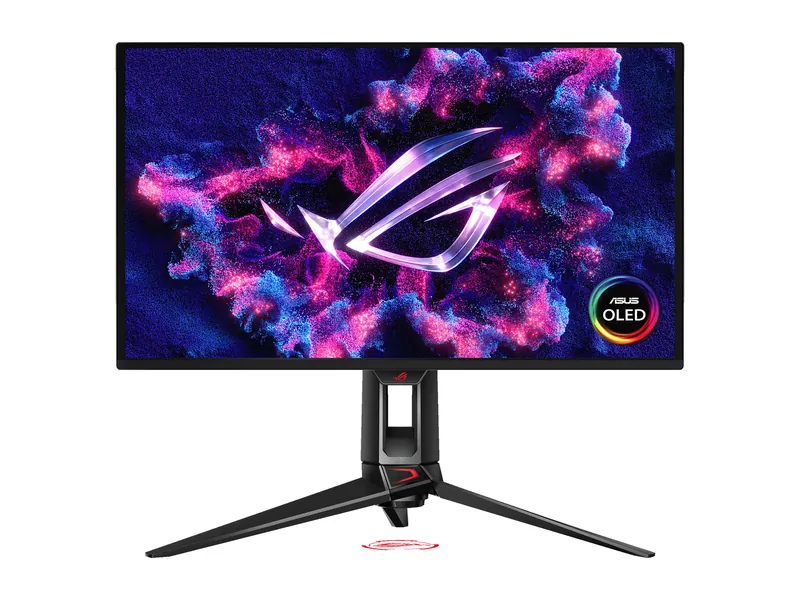
You want 4K QD-OLED, the ASUS-listed 240Hz refresh rate and USB-C charging. You accept OLED care.
Skip it if Static desktop work dominates your day and you are unwilling to accept burn-in risk.
Cooler Master Tempest GP27U · 1 of 2
Get it if You want 27-inch 4K Mini-LED, manufacturer-listed 160Hz and USB-C 90W power delivery.
Skip it if You expect local dimming to behave exactly like OLED, or have not checked the ports and modes you will use.
| Screen | 27-inch QD Mini-LED (Cooler Master) |
|---|---|
| Resolution | 3840 × 2160 |
| Refresh rate | 160Hz (Cooler Master) |
| Dimming zones | 576 (Cooler Master) |
| HDR | DisplayHDR 1000; 1,200-nit peak HDR (Cooler Master) |
| SDR brightness | 600 nits (Cooler Master) |
| USB-C | 90W power delivery (Cooler Master) |
| Ports | DisplayPort 1.4, 2× HDMI 2.1, USB-C (Cooler Master) |
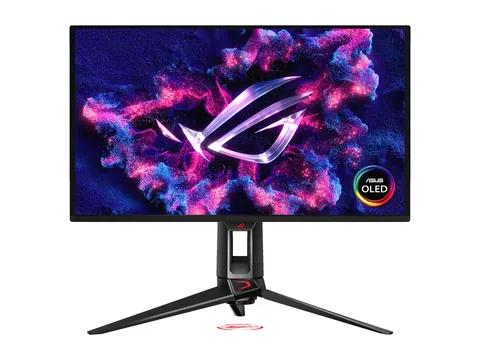
ASUS ROG Swift OLED PG27UCDM · 2 of 2
Get it if You want 4K QD-OLED, the ASUS-listed 240Hz refresh rate and USB-C charging. You accept OLED care.
Skip it if Static desktop work dominates your day and you are unwilling to accept burn-in risk.
| Screen | 26.5-inch QD-OLED, anti-reflection coating (ASUS) |
|---|---|
| Resolution | 3840 × 2160 |
| Refresh rate | 240Hz (ASUS) |
| Response time | 0.03ms GtG (manufacturer) |
| Color gamut | 99% DCI-P3 (ASUS) |
| Color accuracy | ΔE < 2, calibration report via DisplayWidget Center (ASUS) |
| HDR | HDR10 · Dolby Vision · DisplayHDR 400 True Black · 1,000-nit HDR peak (ASUS) |
| USB-C | DP Alt Mode, 90W power delivery (ASUS) |
| Ports | 1× DisplayPort 2.1 · 2× HDMI 2.1 (FRL) · 1× USB-C (ASUS) |
| KVM | Yes (ASUS) |
Pick two. Compare the numbers—not the marketing.
| Specification | Pick for a Mini-LED deskTempest GP27U | Our top pick for 4K OLED gamingASUS PG27UCDM |
|---|---|---|
| At a glance | ||
| Screen | 27-inch QD Mini-LED (Cooler Master) | 26.5-inch QD-OLED, anti-reflection coating (ASUS) |
| Resolution | 3840 × 2160 | 3840 × 2160 |
| Rated refresh | 160Hz (Cooler Master) | 240Hz (ASUS) |
| HDR rating | DisplayHDR 1000; 1,200-nit peak HDR (Cooler Master) | HDR10 · Dolby Vision · DisplayHDR 400 True Black · 1,000-nit HDR peak (ASUS) |
| USB-C | 90W power delivery (Cooler Master) | DP Alt Mode, 90W power delivery (ASUS) |
| Ports | DisplayPort 1.4, 2× HDMI 2.1, USB-C (Cooler Master) | 1× DisplayPort 2.1 · 2× HDMI 2.1 (FRL) · 1× USB-C (ASUS) |
This comparison uses Cooler Master GP27U specifications. For ASUS, we cite official specs and RTINGS’ published review. The cited sources do not include a matched independent comparison of these two monitors. Brightness and refresh figures below are manufacturer claims, not our measurements.
Both screens are 3840 × 2160. ASUS lists 240Hz for the PG27UCDM; Cooler Master lists 160Hz for the GP27U. A screen’s maximum refresh rate does not promise that your games will reach it at the settings you want.
Start with your games, graphics card and preferred image settings. Check published benchmarks for that workload before paying for a higher refresh ceiling. If you would rather keep GPU demands lower, our 1440p guide is a sensible place to look.
Keep a working 1440p monitor if moving to 4K would force settings you do not want. Choose the higher resolution for a workload you can name, not the age of your current screen.
RTINGS’ PG27UCDM review supports its gaming performance and sharp text, while flagging OLED burn-in risk and raised blacks in bright rooms. Treat static interfaces and your room’s lighting as part of the buying decision, especially if the monitor also handles a full workday.
Cooler Master lists 576 dimming zones for the GP27U. Mini-LED zones control groups of pixels; OLED controls light at the pixel level. The GP27U zone count alone does not establish how visible blooming will be. Look for a published evaluation of that behavior before buying mainly for dark-room HDR.
Cooler Master lists 600-nit SDR brightness and a 1,200-nit HDR peak, with DisplayHDR 1000 certification. Those figures describe particular ratings and modes. Do not compare an HDR peak directly with full-screen SDR output and call it a brightness winner.
ASUS lists DisplayPort 2.1, two HDMI 2.1 ports and USB-C with 90W power delivery. Cooler Master lists DisplayPort 1.4, two HDMI 2.1 ports and USB-C 90W. Check the exact resolution, refresh and charging mode supported by your computer, console and cable.
Power delivery can help a laptop desk, but 90W is not a promise that every gaming laptop will run at full load from the monitor. Compare your laptop’s requirements with the monitor documentation.
Read the current US warranty, seller and return terms for the exact model. Do not transfer an ASUS warranty promise to Cooler Master or assume a region’s coverage applies elsewhere. Our Black Friday watchlist explains the listing checks to make before a sale.
Choose the panel for the way you use the desk. Then check the seller and return terms. A discount cannot fix a monitor that does not fit your work, room or games.
Check the room before choosing a panel. Assess whether 1440p serves your workday.
Image credits: Tempest GP27U — Cooler Master · ASUS PG27UCDM — ASUS.