Research-based pick
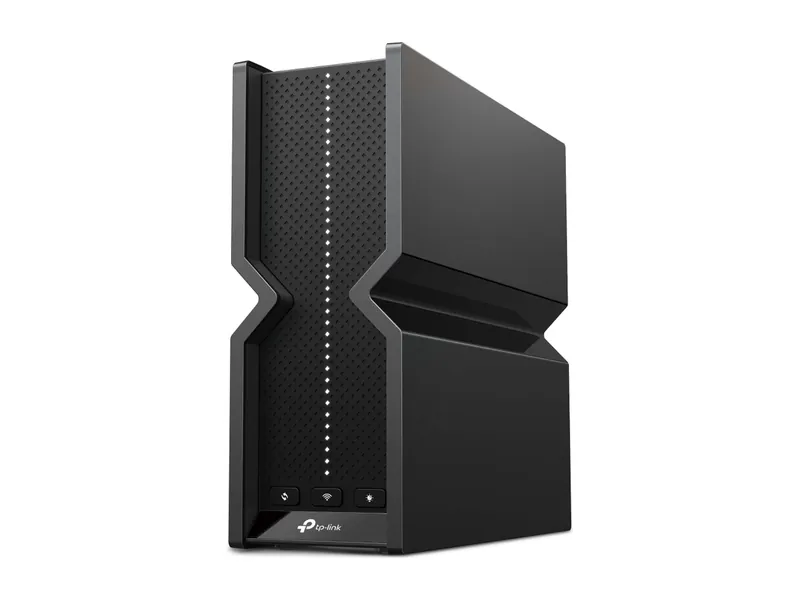
Archer BE550
Tri-band with 6 GHz and five 2.5G ports. The sensible Wi-Fi 7 buy.
Tri-band BE9300 · 5× 2.5G · USB 3.0

A VPN may improve a poor route to a game server, but it can also add delay. First compare Ethernet with Wi-Fi and check household traffic. Keep the VPN only if repeated sessions show a useful benefit.
We may earn a commission when you buy through our links. Affiliate disclosure
Research-based, not lab-tested. Start with the full ping troubleshooting guide if you have not isolated the problem. A VPN changes the network path; it does not establish a frame-rate improvement.
Connect directly to the main router if your device supports Ethernet. Confirm that the game uses that adapter. A wired connection to a mesh satellite may still cross a wireless backhaul link.
Ask other household users before pausing uploads, cloud backups or downloads. If the trouble follows household load, investigate the router’s documented traffic-management settings. If only distant Wi-Fi struggles, check placement and the mesh backhaul plan. A VPN cannot repair a weak wireless signal.
Microsoft’s Wi-Fi guidance includes a gateway check and a wired comparison. Keep the game’s server or region fixed so a matchmaking change does not distort the comparison.
Check the game’s official service-status page and support instructions. If support provides a diagnostic hostname, use that target. A trace to an unrelated website describes a different destination.
On Windows, replace GAME_DIAGNOSTIC_HOST below with the hostname supplied by game support. These commands gather supporting evidence; their ICMP replies are not the game’s own latency display.
tracert /d GAME_DIAGNOSTIC_HOST
pathping /n GAME_DIAGNOSTIC_HOST
Microsoft documents tracert as a route diagnostic. Some routers do not answer its probes, so asterisks alone do not establish a failing hop. Pathping gathers repeated responses; a router can ignore packets addressed to itself while still forwarding traffic.
Save the time, destination and in-game symptoms for your ISP or game-support team. Avoid blaming a provider from one trace. Repeated trouble at comparable times is more useful evidence, but it still needs interpretation. Share network details privately with support.
An alternative path may help when an otherwise stable wired connection has a poor route to a particular game. Surfshark describes this possibility in its gaming VPN guidance, while also acknowledging that the extra VPN hop can increase ping. Treat this as a reason to compare routes, not evidence that your ISP is at fault.
Traffic-specific throttling is another possibility described in Surfshark’s speed guidance. A poor connection alone does not prove throttling. A different route does not create more capacity on a saturated home connection.
IP privacy is a separate reason to consider a VPN. Surfshark says its gaming service hides the home IP from peers who see the VPN address. That can reduce direct IP exposure relevant to targeted DDoS attempts; it is not a promise of attack immunity or faster play. If attacks already affect your connection, contact your ISP.
| Situation | What a VPN changes | Decision |
|---|---|---|
| Stable Ethernet, one game has a poor external route | Traffic takes a different path through the VPN | Compare repeated sessions on the same game server. |
| Suspected traffic-specific throttling | The ISP sees an encrypted VPN tunnel | Collect evidence; do not assume throttling from lag alone. |
| Concern about peers seeing your home IP | Peers may see the VPN exit address | Evaluate privacy separately from latency. |
| Weak Wi-Fi or a busy household uplink | The same local bottleneck remains | Fix the local problem first. |
| A distant or congested VPN server | The path can add travel and waiting time | Try a nearby location or return to VPN off. |
| Protocol processing or an incompatible game | The tunnel adds processing and may disrupt access | Follow support guidance and the game’s VPN policy. |
Use the game’s network display for ping, variation and loss where available. A download-speed result or the VPN app’s server indicator does not measure the full game session.
Copy this worksheet into a note, or print the page. The blanks are for your observations, not THP benchmark results.
Date/time:
Game and actual server/region:
Ethernet or Wi-Fi, including backhaul:
Household traffic:
Session length:

OFF: typical ping / range / loss / disconnects:
ON:  typical ping / range / loss / disconnects:
VPN location and protocol:
Game confirmed inside VPN tunnel:
OFF repeat:
Another comparable session:
Decision and reason:
Check the game’s rules before using a VPN. Do not use this comparison to evade restrictions or manipulate matchmaking. If the game changes your region automatically, record that change and avoid calling it a same-server result.
Surfshark and NordVPN are two providers you can evaluate with that worksheet. Surfshark’s Windows troubleshooting instructions suggest comparing locations and trying WireGuard, and NordVPN’s NordLynx documentation describes its WireGuard-based protocol. Start with documented settings; a protocol name does not establish a better game route.
Read current device support, renewal, cancellation and refund terms before subscribing. We have not lab-tested either VPN service and make no trial or performance claim.
We may earn a commission when you buy through our links. Affiliate disclosure
For a remaining game-specific route problem, you can compare a routing service separately. GearUP serves that purpose in our ping diagnosis guide. Change only one service at a time; combining it with a VPN would make the result harder to interpret.
Read current game support and subscription terms before starting. If the benefit does not repeat, keep the baseline connection.
We may earn a commission when you buy through our links. Affiliate disclosure
That is an affiliate link. We may earn a commission. THP has not tested GearUP and does not promise a latency or rendering improvement.
Buy hardware only for a demonstrated local need. The TP-Link Archer BE550 card below is an existing router candidate from our Wi-Fi 7 router guide. It is relevant if that guide’s coverage and connectivity requirements fit your home. Replacing a router does not establish a fix for an ISP route.
Wait on a VPN subscription while the evidence is inconclusive. Gather comparable sessions and check current terms first.
Skip a network service for frame-rate stutter when the network stays stable. Review the graphics-card decision guide for a separate rendering bottleneck.
No. It adds a tunnel and another network stop. A useful result depends on whether the alternative route outweighs that added delay for your particular connection.
Use a nearby server as a starting point. Judge the complete route with the game’s own telemetry, because the VPN location alone does not describe the path to the game server.
An alternative route may avoid an external problem, but it leaves the local connection in place. Check Ethernet, household traffic and game status before attributing loss to the ISP route.
No. Network latency and rendered frames describe different work. Do not buy a VPN to address a graphics bottleneck.
Tri-band with 6 GHz and five 2.5G ports. The sensible Wi-Fi 7 buy.
Tri-band BE9300 · 5× 2.5G · USB 3.0
Image credits: TP-Link Archer BE550 BE9300 Tri-Band Wi-Fi 7 Router — TP-Link.