
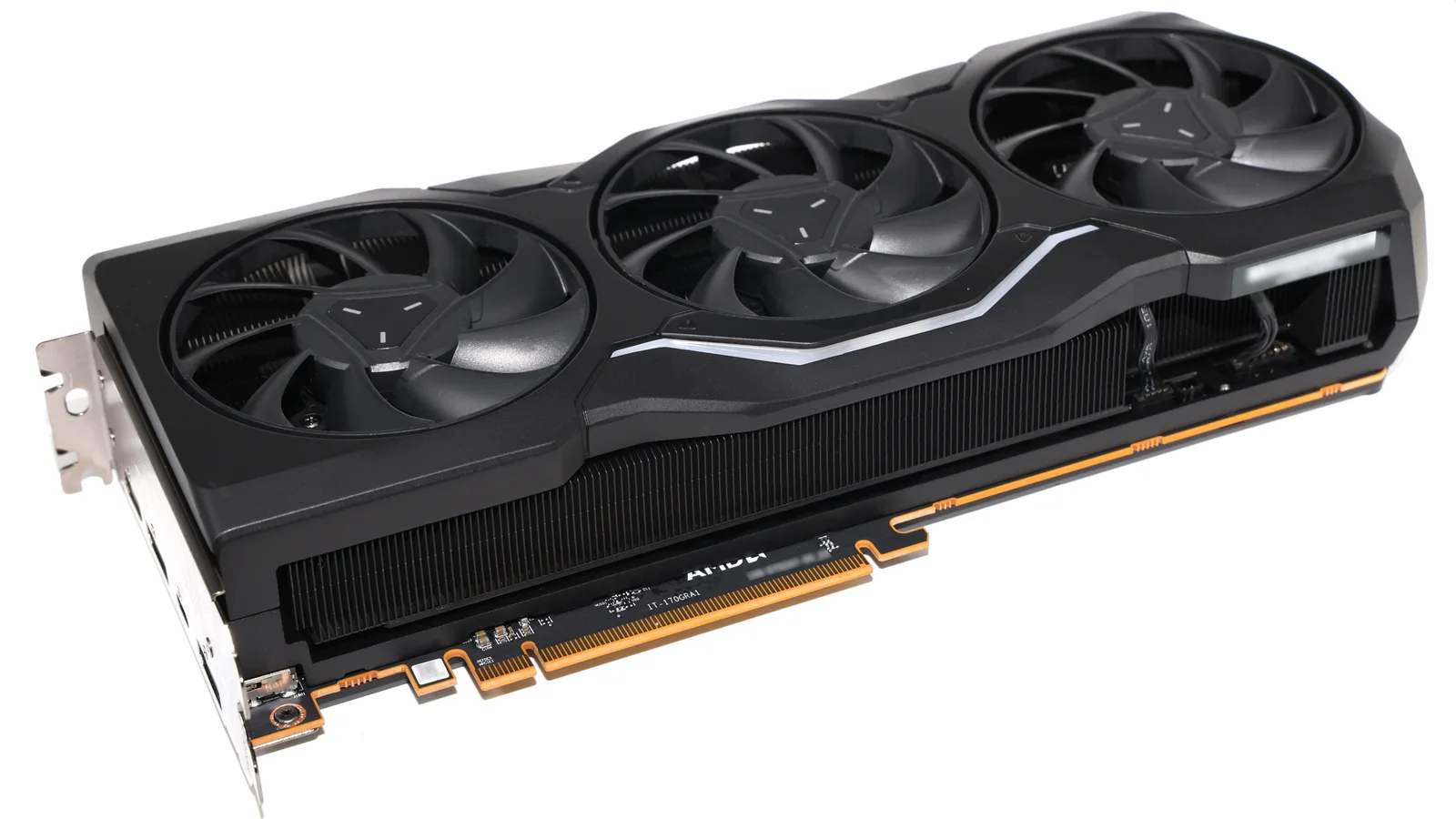
As of Nov 1, 2026, ASRock lists new vBIOS downloads for ten Radeon RX 7000 graphics cards, dated October 29. Check your exact board and its update instructions before flashing; ask ASRock support if the guidance conflicts. A firmware release alone is no reason to replace a working GPU.
This is research-based buying advice drawn from manufacturer support information and attributed reporting. If you already need more performance, use our GPU hierarchy to assess the upgrade separately from the firmware question.
What ASRock released
ASRock’s official BIOS update list shows these ten boards. Each entry is dated October 29, 2026 and carries the download label 1.0.5.
| ASRock graphics card | Download label |
|---|---|
| Radeon RX 7600 XT Challenger 16GB OC | 1.0.5 |
| Radeon RX 7600 XT Steel Legend 16GB OC | 1.0.5 |
| Radeon RX 7700 XT Challenger 12GB OC | 1.0.5 |
| Radeon RX 7800 XT Challenger 16GB OC | 1.0.5 |
| Radeon RX 7800 XT Steel Legend 16GB OC | 1.0.5 |
| Radeon RX 7900 XT Phantom Gaming 20GB OC | 1.0.5 |
| Radeon RX 7900 XT Phantom Gaming White 20GB OC | 1.0.5 |
| Radeon RX 7900 XTX Phantom Gaming 24GB OC | 1.0.5 |
| Radeon RX 7900 XTX Taichi 24GB OC | 1.0.5 |
| Radeon RX 7900 XTX Taichi White 24GB OC | 1.0.5 |
The description names ASRVBFlash ver:1.0.5. That label does not establish which vBIOS revision will appear on your card after installation. Match the complete board name, including White, OC and memory capacity where listed.
What is known about the security context?
TechPowerUp’s October 31 report places ASRock’s release after security-related firmware from Sapphire and GIGABYTE. It says GIGABYTE referenced AMD-SN-6023 and AMD reported no known exploitation at the time of its statement. Those statements do not establish today’s exploit status or the specific changes in ASRock’s packages.
ASRock’s list supplies no detailed changelog. We cannot name a confirmed ASRock vulnerability fix, severity or performance benefit from that description.
Should you update now or wait for clarification?
TechPowerUp reports a conflict: AMD advises installing available manufacturer firmware, while ASRock’s download page carries a general warning against updating a normally working card. The report also describes ASRVBFlash as a Windows tool.
Our recommendation is to check the instructions for your exact ASRock board and ask ASRock support to resolve any conflicting advice before proceeding. Waiting for a missing instruction is reasonable; assuming a matching GPU chip makes another board’s package suitable is not.
What to check before you update
- Identify the whole card. Check the manufacturer’s model name on your card or purchase record. RX 7900 XTX alone does not identify an ASRock Phantom Gaming, Taichi or Sapphire board.
- Use the matching support page. Select your exact ASRock model from the official list. Owners of other brands should use their own manufacturer’s support information.
- Read the package instructions before running it. Confirm the supported operating system, prerequisites and any recovery instructions. Contact support if the download does not clearly match your card.
- Record the current version. Save the model and firmware information before making changes so you can describe the starting state to support.
A graphics-card vBIOS package and a normal graphics-driver installer are different updates. Follow the instructions attached to the package you actually downloaded.
Buy, wait, or skip a replacement GPU
Keep your card if it meets your needs; investigate the firmware independently. Wait for clarification when your exact model or instructions are missing. Buy a replacement only for a separate need, such as a failed card or insufficient performance, after checking compatibility and the seller’s return terms.
Skip a purchase justified solely by this update announcement. Our graphics-card buying guide helps compare a needed replacement. The ASUS router firmware checklist covers a separate device category; its fixes and instructions do not apply to Radeon cards.
Our recommendation
Start with the exact ASRock support entry. If it matches your card, read the instructions and resolve any conflicting guidance with support before flashing. Keep a working GPU that still suits your workload. Our research method explains how we separate manufacturer information, reporting and buying advice.
Photo: Geni via Wikimedia Commons, CC BY-SA 4.0. Cropped and resized; this image and its derivatives remain under CC BY-SA 4.0.
